Inspect the original
Zoom in on the subject at a normal viewing size. Decide whether the problem is slight softness, camera movement, low resolution, or noise before you try to unblur image details.
Sharpening guide
An unblur image free enhancer may help a slightly soft photo look clearer, but it cannot recover detail the camera never captured. Check the type of blur before choosing an edit.
Supavisual has 2×/4× upscale and background removal, but no dedicated unblur, deblur, or sharpen tool. Upscaling cannot reliably recover lost text or detail. This link opens its home page; sign-in and a paid AI plan are required.
Explore Supavisual upscale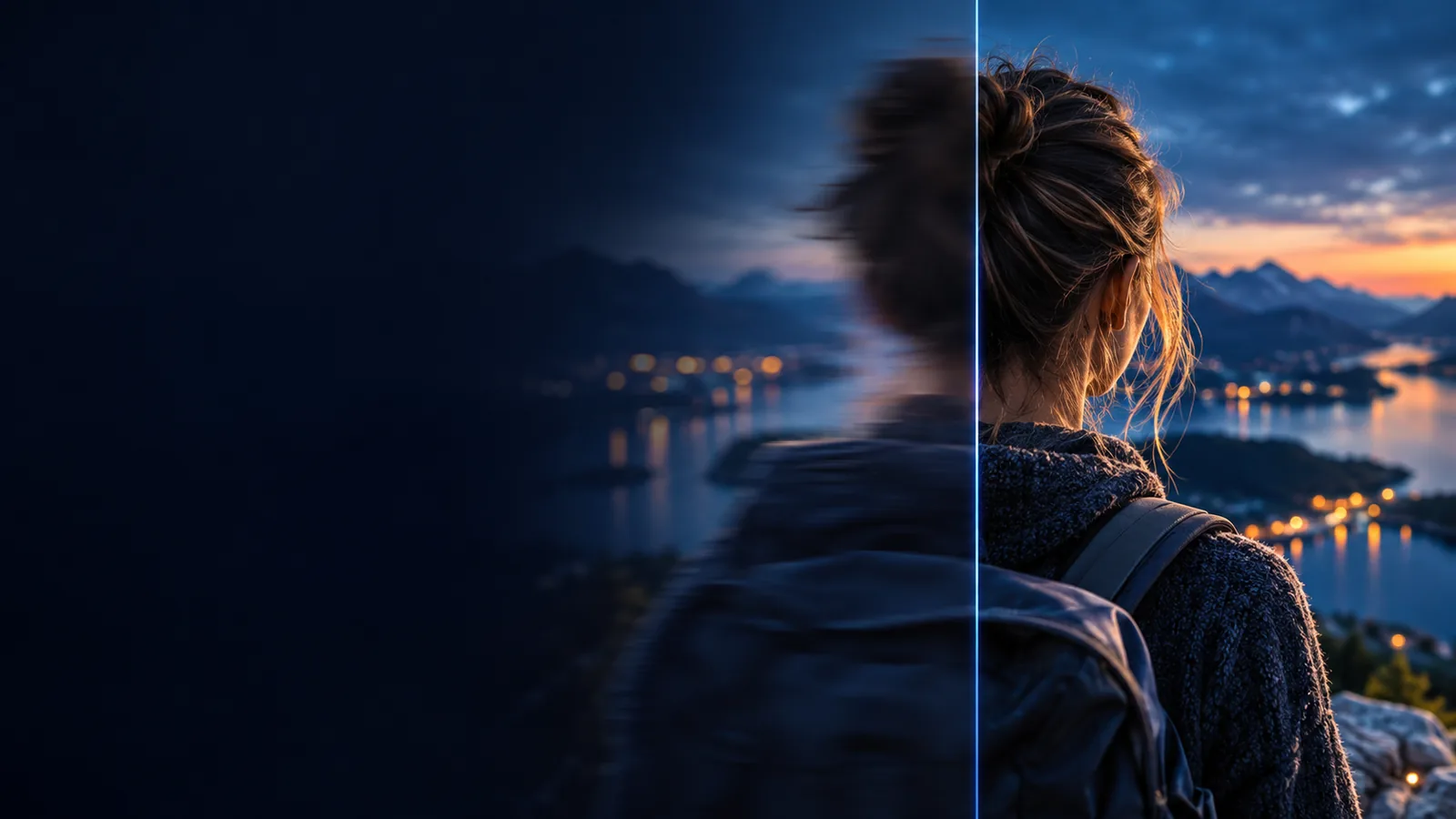
A free enhancer focuses the question on a practical edit: will sharpening improve this particular photo? A general image workflow may also involve exposure, noise, color, or resizing.
Compare online access claims with the editing result you actually need.
See when conventional sharpening gives you more direct control.
Understand why unreadable lettering needs a stricter test than ordinary photo detail.
The useful split is between making existing edges easier to see and reconstructing information that is no longer in the file. These limits apply regardless of how polished the preview looks.
Strong defocus spreads fine features across neighboring pixels. Sharpening can raise contrast around surviving edges, not retrieve the original fine structure.
WorkaroundLook for another frame or the original, higher-quality file before attempting a stronger edit.
Letters that have merged into indistinct shapes cannot be verified by a visually plausible enhancement. An apparent word may be an artifact rather than the original text.
WorkaroundConsult the source document or reshoot it with steady focus and better light.
A long exposure can smear several positions of a moving subject into one image. Aggressive sharpening often emphasizes halos and noise instead of separating them.
WorkaroundTry a less-blurred frame, or limit the edit to modest overall clarity.
Use a small, reversible test rather than assuming the strongest-looking result is the most faithful. A free enhancer is most useful when enough real edge information survives.
Zoom in on the subject at a normal viewing size. Decide whether the problem is slight softness, camera movement, low resolution, or noise before you try to unblur image details.
Ask for clearer existing edges while preserving skin, lettering, and texture. Avoid requests to recreate tiny details you cannot confirm in the original.
Look at the original and result side by side. Keep the edit only if important edges are clearer without conspicuous outlines, grain, or changed features.
“Enhance” and “unblur” overlap, but they are not interchangeable goals. This comparison describes the editing tasks, not guaranteed features of a particular service.
Sharpening-focused route
Increase the apparent clarity of existing edges.
General image enhancement
Improve the image's overall presentation.
Sharpening-focused route
A photo with mild softness and recognizable details.
General image enhancement
A photo that may also need tonal or color adjustments.
Sharpening-focused route
Edge halos and exaggerated texture.
General image enhancement
Whether the broader changes preserve the original scene.
Sharpening-focused route
Can make surviving letter edges clearer, not verify lost words.
General image enhancement
Other visual improvements do not establish what missing text said.
Sharpening-focused route
Cannot reliably restore absent subject detail.
General image enhancement
Broader edits cannot supply a trustworthy record of absent detail either.
Sharpening-focused route
Choose it when edge softness is the main problem.
General image enhancement
Choose it when sharpness is only one of several problems.
The same blur can matter differently depending on what the picture must communicate. Treat a free enhancer result as a visual edit, not proof that recovered details are authentic.
A product photo is slightly soft but its shape and branding are still visible.
Test gentle edge clarity, then check that labels and surface texture have not changed.
unblur image online freeA landscape looks flat as well as soft.
Compare sharpening with broader tonal adjustments rather than trying to unblur image detail alone.
unblur image without aiA photographed receipt has uncertain small print.
Check the source instead of relying on sharpened characters as a faithful transcription.
Is it possible to unblur text?A handheld shot has both noise and a moving subject.
Inspect other frames first; reducing noise or halos cannot fully undo subject movement.
How do I unblur a picture on my iPhone?If the subject is recognizable but a little soft, describe a restrained edit and judge the result against the original. An unblur image free enhancer is a starting point for comparison, not a guarantee that missing information will return.
It may increase the apparent contrast of edges or make a mildly soft image look clearer. Results depend on the source image; a sharper-looking preview does not mean lost detail was recovered.
It may improve the appearance of a photo that is only slightly out of focus. If fine details have merged together, sharpening cannot reliably reconstruct the original scene.
No. Sharpening targets edge appearance, while image quality can also involve exposure, color, noise, and resolution. Choose the edit based on the problem visible in your original.
Compare it with the original at the same size. Bright outlines, harsh skin texture, stronger grain, or altered lettering are reasons to use a gentler result.
It may clarify letters whose shapes are still present, but it cannot verify characters that were never captured clearly. For anything important, check the original document or take another photo.